

With the addition of Invoices to HubSpot CRM, companies can now track individual transactions as invoices, giving a more detailed understanding of your income stream. By tracking invoices, you will be able to follow specific payments where a deal will typically only tell you the total value of an agreement, or average recurring revenue.
Starting out, invoices could only be accessed by also using subscriptions or payments through HubSpot's Commerce Hub, but these are now available on their own on all HubSpot plans.
Who should implement this?
After all-round testing of the current status of invoices in HubSpot, it seems clear that this feature is still in development, and we also know that some product updates are on the way or already being tested. The following is based on what the capabilities are right now for fully launched features.
The invoices object in HubSpot can be a great fit for you if you:
- Are planning on also using payments or subscriptions as a part of your HubSpot setup.
- OR Are planning on setting up an integration that will create and manage invoices from a separate system.
- OR want to manually send your invoices and receipts to clients from HubSpot
The invoices could be a great fit in the future if you:
- Want to track the transactions of a deal for reporting purposes.
Right now you are technically able to create invoices and track payments manually, but there is not yet a way to utilize workflows to create these for you, and if you forget to untick the checkboxes every time, receipts or invoices will be sent to your contact from HubSpot.
Using invoices to track transactions directly in this way will be ideal IF we get the option to automate this process, and to create unbillable invoices that are not sent to your client without actively trying to do so.
Initial setup before you start creating invoices
HubSpot will use the same brand and general settings for invoices as you've probably already set up for other tools, and host them on your primary domain. You can modify this in your account and domain settings if you want to have specific details for your invoices, but most companies can skip this part.
On your settings page in HubSpot, navigate to Data management > Objects > Invoices to start setting up this tool. You should go over all details on this page, but I will explain some specific settings to keep in mind.
Invoice numbers
By default, HubSpot will create invoice numbers starting with INV-1001 and count from there. You want to set up a prefix (replacing INV) to make it clear what system the invoice was created from, to not be confused with older systems, or other invoicing systems you are also using. Updating the starting number could also be a strategic way to avoid overlapping numbers between systems that can cause confusion.
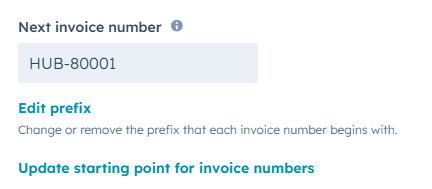
This can be anything you want, but setting up something like HUB-80001 would make it easy to recognize that this invoice came form HubSpot, and any number starting with 8XXXX would also suggest the same.
Invoice numbers can not be changed after the invoice is made, so do this before you start.
Customization
Make sure you add any legal or necessary information to your invoices in the Customization tab. Invoice requirements are different for different countries, so you may want to add custom properties to you invoice for information you need to add. You can also add default text and comments to be visible on all invoices.
For more details on each of the available settings, see this article from HubSpot's documentation: Set up the HubSpot invoices tool
Creating your invoices
There are a couple different ways to create invoices in HubSpot, depending on what other tools you are already using. If you have set up subscriptions or payments, these tools can automatically create invoices for you based on the known details.
You can also create invoices by utilizing the API, but that is a whole other topic. That way, integrating your other systems can automatically create invoices based on external data.
The last way is to create invoices manually, like you would sometimes do with any other record. If you use quotes, you can create a new invoice directly from a quote, meaning you won't have to enter all the data again. This will use the line items and details form the quote to prepare a new invoice.
You need to prepare the following information as a minimum, before you can create a new invoice:
- One billing contact
- Recipient company record
- Invoice date
- Payment terms
- Due date
- At least one line item