

A common issue that can arise is the development of a “zombie pipeline” filled with outdated or inactive leads, which can skew your metrics and hinder performance assessments.
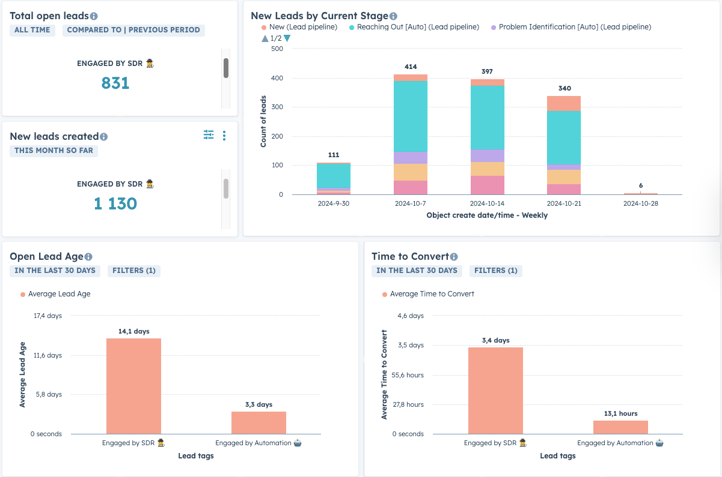
In this guide, I’ll walk you through setting up lead age and time to convert reports in HubSpot CRM. These reports will help you identify any stagnation in your pipeline and ensure that your close rate isn’t artificially inflated due to inactive leads.
By the end of this guide, you’ll have the tools to monitor your pipeline’s health, address any issues with inactive leads, and maintain accurate performance metrics.
The challenge
Automating lead engagement can introduce complexities in pipeline management:
- Zombie pipeline: Accumulation of outdated or inactive leads can inflate your open leads count.
- Artificially high close rates: Inactive leads not being closed out can make your close rate appear better than it is.
- Inefficient reporting: Without proper reports, identifying issues in the pipeline becomes challenging.
- Resource allocation: Inactive leads can consume resources and attention, detracting from high-value engagements.
The solution overview
We’ll set up two key reports in HubSpot CRM:
- Open Lead Age Report: Tracks the age of open leads to identify stagnation.
- Time to Convert Report: Measures the average time it takes for leads to convert, helping spot inefficiencies.
We’ll utilise HubSpot’s new beta features for calculated properties and ensure that these reports focus only on relevant leads by applying appropriate filters.
Note: I'll show the full structure in the video walk-through, but only include the reports above in the text-based walk-though.
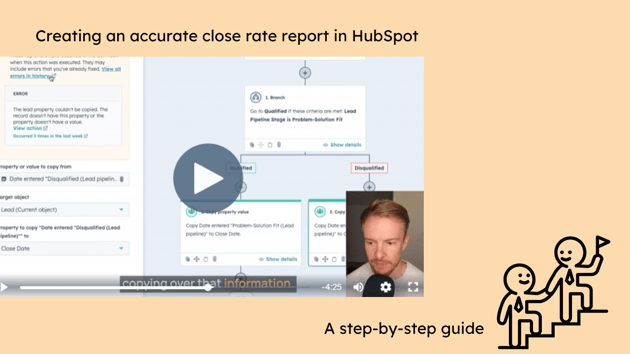
Video walk-through
Step-by-step guide
Step 1: Set up the ‘Lead Age’ calculated property
Why this is important
Understanding how long leads remain open helps you identify if leads are not being closed out properly, indicating a zombie pipeline.
How to do it
1. Access property settings:
- Navigate to Settings > Properties.
- Select the Lead object from the dropdown.
-
-
Click on Create property.
-
Set the following:
- Object type: Lead
- Group: [Choose appropriate group, e.g., Lead Information]
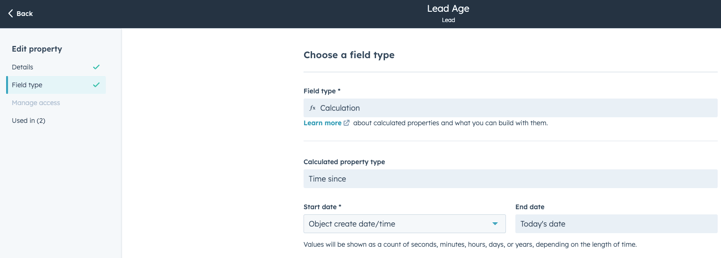
- Label: Lead Age
- Field type: Calculation
- Calculated property type: Time since (Beta feature)
Create a new property:
-
2. Configure the calculation:
-
- In the calculation type, choose Time since.
- Set start date to Object create date/time.
Note: As this is a beta feature, ensure that you have access to HubSpot’s beta programs. Be aware that Time since calculated properties (currently) have limitations:
- They cannot be used in workflows.
- They cannot be referenced in other property calculations.
Step 2: Create the ‘Open Lead Age’ report
Why this is important
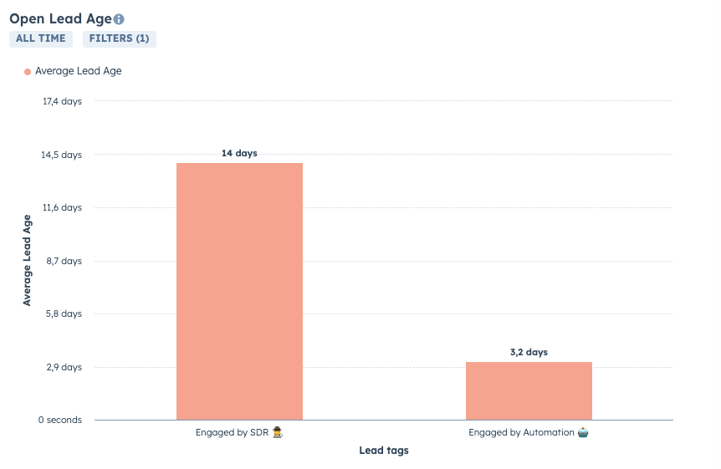
Visualising the average age of open leads allows you to quickly identify if leads are stagnating.
How to do it
1. Navigate to the reports section:
-
- Go to Reports > Reports.
- Click on Create custom report.
2. Select report type:
- Choose Single object report or the Custom report builder (we'll use Single object reports in this guide).
- Select Leads as the primary object.
3. Configure the data:
Note: You need to create a custom property called Close date. See this guide if you're not sure how to create this property and its associated workflow to populate it with data.
-
Filters:
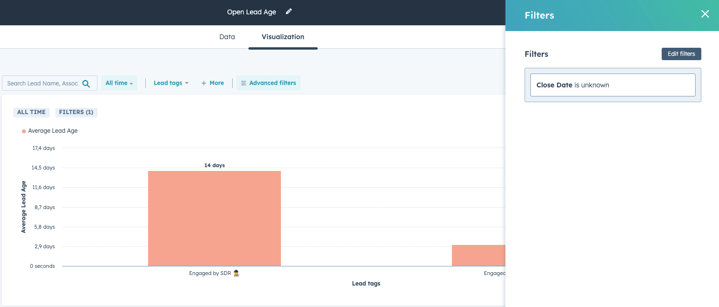
- If you've created a Close date property, set filter to Close date is unknown
- If you haven't created this property you can use Open leads = 1
- Be sure to set the quick filter to "All data/All time" to include all open leads
-
Visualisation:
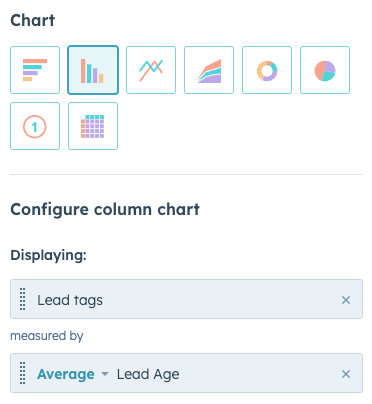
- Y-Axis: Average Open Lead Age (the calculated property you created)
- X-Axis: Lead Tag or Lead Owner (you can also base in on teams and any other segmentation that suits your business)
Step 3: Set up the ‘Time to Convert’ calculated property
Why this is important
Measuring the time it takes for leads to convert helps you assess the efficiency of your engagement processes.
How to do it
1. Access property settings:
- Navigate to Settings > Properties.
-
Click Create property.
-
Set the following:
- Object type: Lead
- Group: [Choose appropriate group]
- Label: Time to Convert
- Field type: Calculation
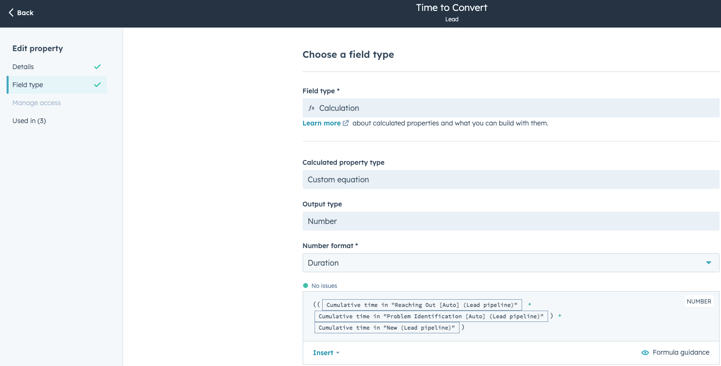
- Choose Custom equation.
- Set Output type to Number with Duration as the format.
- Add the durations of the lead in each relevant lifecycle stage (e.g., Open, Attempting, Qualified).
- For example:
Time in Stage Open + Time in Stage Attempting + Time in Stage QualifiedConfigure the calculation:
Note: Ensure you have Calculated Properties available in your HubSpot plan, as there might be limits on the number you can create.
Step 4: Create the ‘Time to Convert’ report
Why this is important
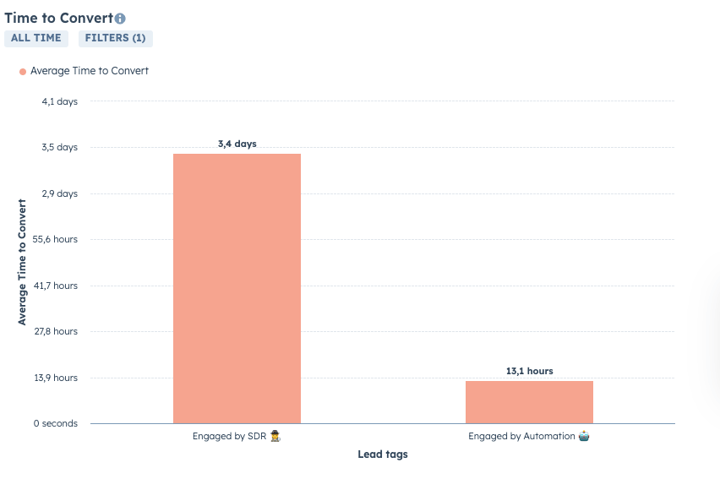
This report shows the average time it takes for leads to convert, helping you spot delays or inefficiencies in your pipeline.
How to do it
1. Select report type:
- We'll use the Single object report in this example.
- Select Leads as the primary object.
-
Filters:
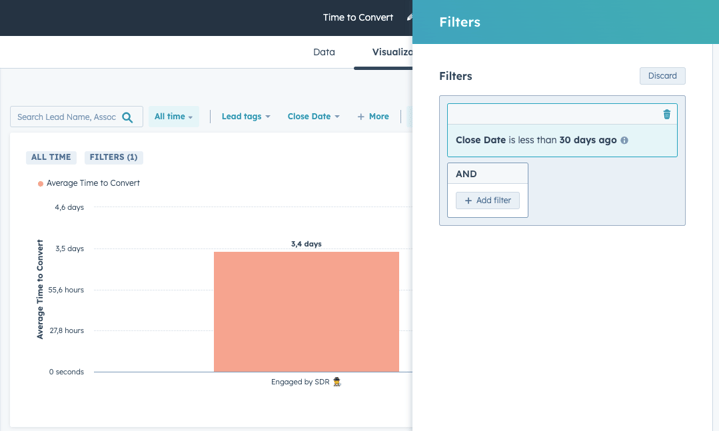
- Set Close date to the time frame that suits your business (e.g., less than 90 days ago)
-
Visualisation:
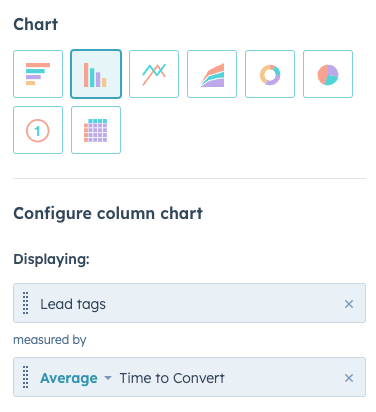
- Y-Axis: Average Time to Convert
- X-Axis: Lead Tag or Lead Owner (you can also base in on teams and any other segmentation that suits your business)
Configure the data:
2. Customize the report:
-
- Change the metric to Average (consider adding Median for additional insight).
- Adjust the visual settings as desired.
Step 5: Regularly monitor and maintain pipeline hygiene
Why this is important
Ongoing attention ensures that the pipeline remains healthy and your metrics stay accurate.
How to do it
1. Schedule regular reviews:- Set up weekly or monthly meetings to review the reports with your team.
- Use HubSpot workflows to notify reps of leads that have been open beyond a certain threshold.
- If recurring issues are identified, consider refining your lead management processes or automation settings.
- Offer training sessions to help your team understand the importance of closing out leads and how to manage their pipeline effectively.
Up next…
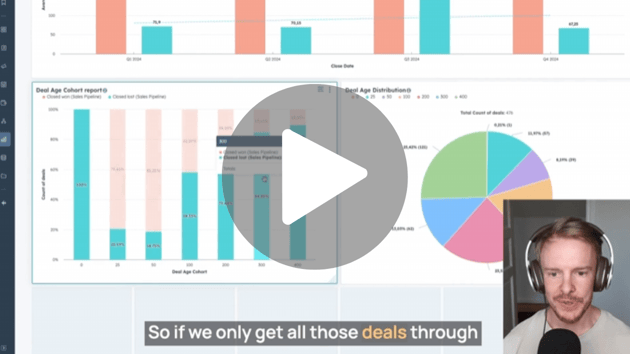
- Cohort analysis: Learn how to analyse close rates based on the age of deals, helping you understand when a lead is unlikely to convert.
- Advanced reporting techniques: Explore more complex reporting methods to gain deeper insights into your sales process.
- Optimising automation: Strategies to refine your automated engagement to further enhance efficiency and effectiveness.
Stay tuned for more insights on maintaining a leaner, easier, and more profitable growth journey.