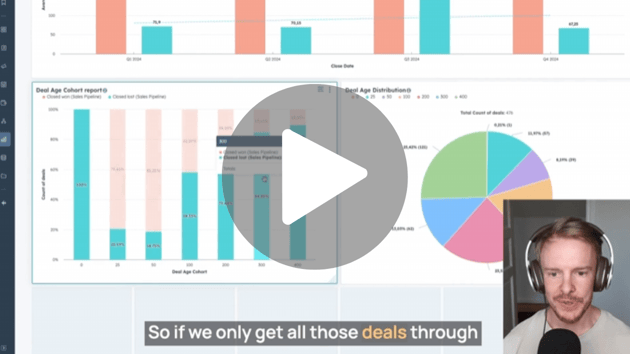


In this guide, I’ll walk you through creating a close rate report in HubSpot CRM.
By the end of this guide, you’ll have a clear, actionable report that accurately reflects your close rates for leads and deals, enabling you to make informed decisions to optimise your sales process.
The challenge
Accurate close rate reporting is essential, but many companies face issues such as:
- Zombie pipelines: Accumulating deals or leads that remain open for extended periods without progress, which distorts your close rate metrics.
- Inflated close rates: Including open leads in your calculations can lead to misleadingly high close rates.
- Lack of trend analysis: Without proper reporting, it’s challenging to track performance over time or identify patterns.
The solution overview
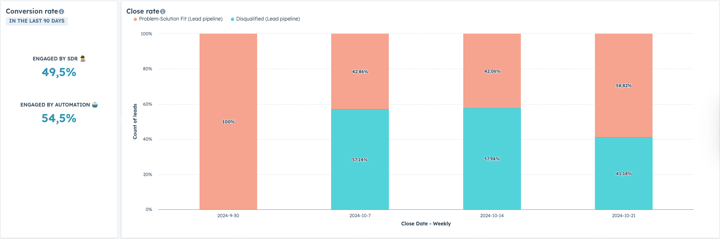
We’ll set up a close rate report in HubSpot that:
- Focuses on closed leads: Calculates close rates based solely on leads that are either converted or disqualified.
- Provides both trend and snapshot views: Offers a comprehensive understanding of your sales performance over time.
- Is replicable for deals: The same methodology can be applied to deal objects.
Let’s dive into the step-by-step process.
Video walk-through
Step-by-step guide
Step 1: Create the Close date property
Note: If you want to set this up for Deals you can jump straight to Step 2.
Why this is important
While there is a create date property by default, there is no close date property on the Leads Object by default. So, if you want to base your report on the close date rather than the day a lead was created, you need to set up a new property and a workflow to update it.
How to do it
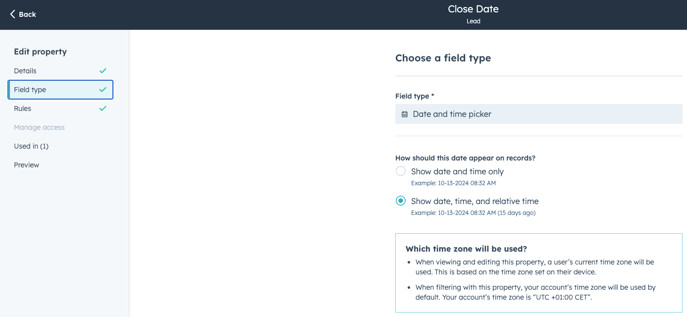
1. Create the Close date property:
-
- Chose Object type = Lead
- Select Date and time picker as Field type
2. Create the Close date workflow to set the date:
- In the workflow builder, select Lead-based workflow.
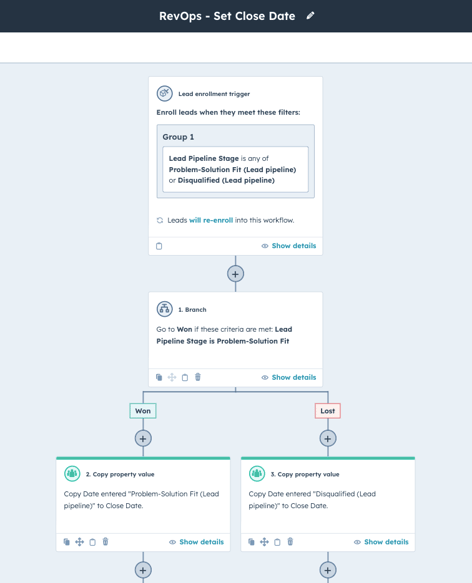
- Set the trigger type for the Lead based on the qualified/disqualified stages
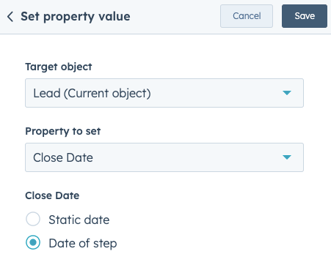
- Option 1: If you don't need to update based on historical data, you can use the Date of step to set the Close date.
- Option 2: If you want to update Leads retroactively, you can use an if-branch and copy the date information from the closed stages.
Step 2: Set up the trend-based close rate report
Why this is important
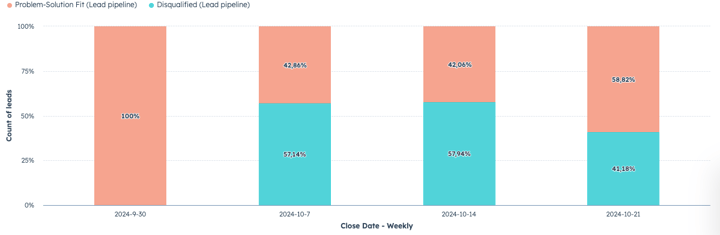
Proper configuration ensures your report accurately reflects your close rates and provides meaningful insights.
How to do it
1. Select data sources:
- In the report builder, choose Leads (or Deals) as your primary data source.
-
-
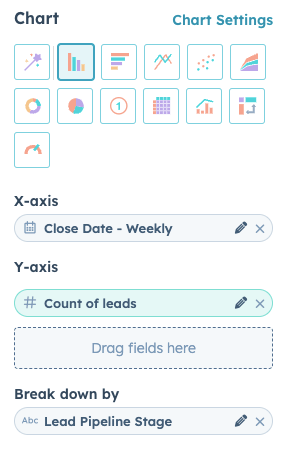
Visualization Type: Select Vertical Bar Chart.
-
X-Axis (Horizontal):
- Drag Close date to the X-Axis to segment data over time.
- Alternatively, you can use Create date
-
Y-Axis (Vertical):
- Use Count of leads to display the number of leads.
-
Break down by:
- Drag Lead pipeline stage to break down the data.
-
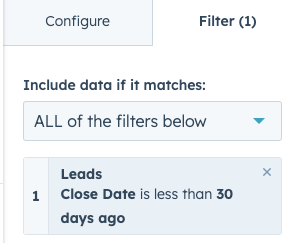
2. Apply filters:
-
Close date = less than X days ago
- Note: If you are setting this up for the Deal object, you should add "Is Closed (numeric) = 1" as an additional filter to ensure you only include closed deals.
- Note: If you are setting this up for the Deal object, you should add "Is Closed (numeric) = 1" as an additional filter to ensure you only include closed deals.
-
Date range:
- Set an appropriate date range relevant to your analysis, depending on your average time to close.
3. Adjust chart settings:
-
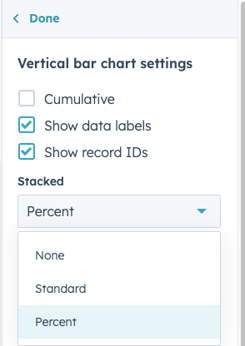
Click on Chart Settings.
-
Under Display options, select Show data in percentages:
- This changes the Y-Axis to display percentages, making it easier to interpret your close rates.
Step 3: Set up the close rate snapshot
Why this is important
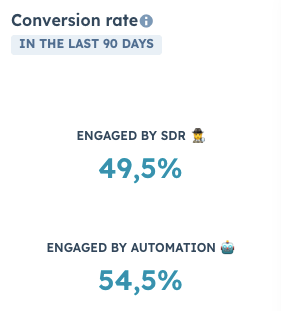
While trend-based analysis is essential to understanding how you're doing in terms of close rate over time, a snapshot can allow you to get a more precise measure of your average close rate, as the rate can vary quite a bit week over week (and even month over month).
1. Create a single object report:
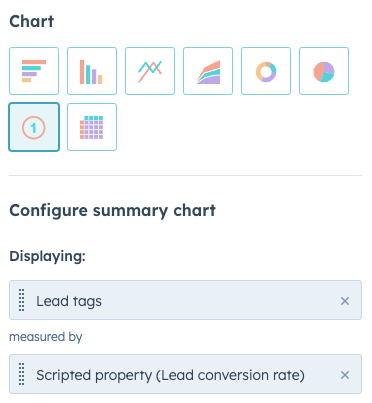
- The single report builder easily provides all the things we need out of the box, so we'll use that.
- Select the KPI chart type
- Select how you want to display your data (team, per rep, other)
- Select the pre-built Lead conversion rate property
2. Apply filters:
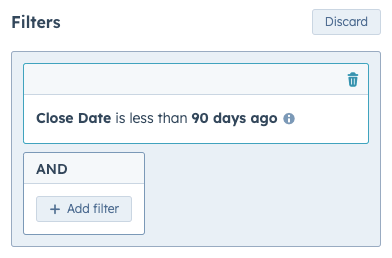
- Navigate to Advanced filters and create a filter with your preferred date range (e.g., Last 90 days)
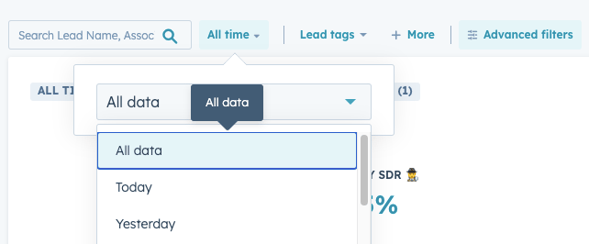
- Set the Date range to "All data" as we will not use this filter.
Conclusion
By following these steps, you’ve created a detailed close rate report that accurately reflects your sales performance. This report helps you:
- Monitor trends: Understand how your close rates change over time.
- Identify areas for improvement: See where adjustments can be made in your sales process.
- Make data-driven decisions: Base your strategies on accurate, reliable data.
Remember, you can replicate this process for deals by selecting the Deal object and adjusting the properties accordingly.
Up next…
In the next guide, I’ll explore how to set up reports for lead age and time to convert, providing deeper insights into your sales cycle and helping you identify potential bottlenecks.
Stay tuned for more insights on optimising your sales reporting and achieving a leaner, easier, and more profitable growth journey.